


Causes
iOS Updates Take Large Space
“Storage Almost Full” alerts often appear at the worst time. For example, they show up when clicking photos, updating iOS, or installing new apps. As a result, your day instantly slows down. The problem has become extremely common in recent years. The biggest reason is how iPhones capture media. 4K Videos Consume Huge Storage.
By default, most iPhones record 4K videos at 30fps. As a result, they consume a massive amount of storage.
For example, just a few minutes of video can take several gigabytes.
Coming up next, the software updates also play a huge role. Additionally, each iOS update requires significant space for installation. Recent updates, including the latest iOS versions, can occupy 16–17GB of storage which is massive. Old system files and cached data often remain hidden under “System Data,” confusing users even further. In India, however, WhatsApp is one of the biggest hidden storage eaters. Group messages filled with forwarded “Good Morning” and “Good Night” images, festival wishes, videos and memes are automatically saved to the gallery and included in WhatsApp backups. These files quickly fills the storage of the iPhone.
How to Check What’s Using Your iPhone Storage
Before deleting files, identify what’s consuming most space:
- Open Settings
- Go to General
- Tap iPhone Storage
Quick Way to Free Up iPhone Storage:
If your iPhone storage is almost full. A few smart habits can instantly free up space
- Delete Unwanted Photos and Videos:
Delete duplicate photos, screenshots and other unnecessary videos instantly free up huge amounts of storage, especially videos that consume the most space in iPhone - Back Up WhatsApp Media (Monthly):
Monthly WhatsApp backups help prevent old forwarded images and videos from piling up in your gallery and occupying large storage. - Old Photos & Videos on a Local Drive:
Transferring older photos and video to a computer or external hard drive keeps your memories safe instead of clearing it away. - Use iCloud Storage (If Possible)
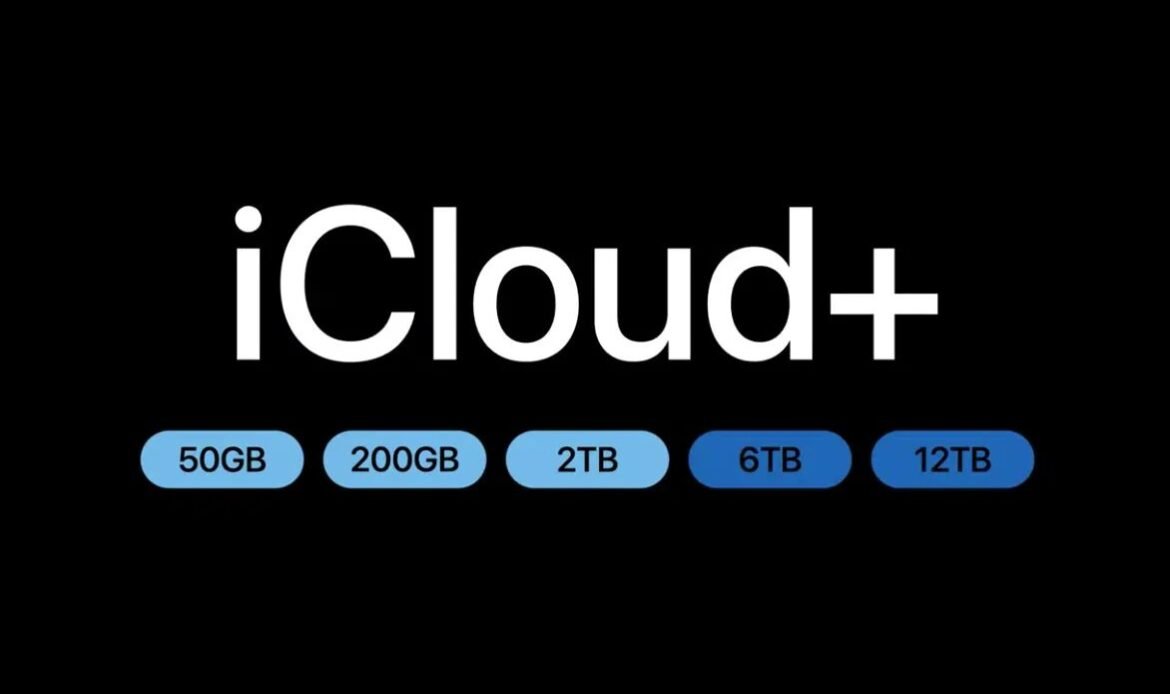
iCloud provide 5GB of free storage which is not possible to backup the data so you can update more space for everything that matters
PLANS:
- Free iCloud 5GB – FREE
- Entry iCloud+ 50GB – ₹75/Month
- Popular iCloud+ 200GB – ₹219/Month
- Large iCloud+ 2TB – ₹749/Month
- Power iCloud+ 6TB – ₹2,999/Month
- Maximum iCloud+ 12TB – ₹5,900/Month
- Offload Unused Apps:
Offloading the apps removes rarely used apps while keeping their data, allowing you to reinstall them later without losing any information.
Smart Long Term Storage Tips:
Review iPhone Storage Regularly:
Check your iPhone storage at least once a month. This helps you understand which apps, photos, videos, or system data consume the most space. As a result, you can remove unnecessary files early and avoid sudden “Storage Full” alerts.
Avoid Recording 4K Videos Unless Required
By default, iPhones record videos in 4K at 30fps, which uses a lot of storage. For everyday videos, switching to 1080p is more than enough. Use 4K only for important moments like trips, events, or professional use.
- Control WhatsApp Media Auto-Download:
In India, WhatsApp is one of the biggest storage consumers. Group chats filled with forwarded images, videos, and festival wishes automatically download to your gallery. Disabling auto-download helps reduce unnecessary media and storage clutter.
- Back Up Old Photos and Videos to External Storage
Storing old photos and videos on your iPhone for years is unnecessary. Instead, transfer them to a computer or external hard drive. This keeps your memories safe while freeing up large amounts of storage.
Keeping your iPhone storage clean is not just about making space, it also directly affects the overall health and performance of the device. Deleting unwanted data from photos, videos, apps and other data helps your iPhone to run smoother without any lags. When your storage is constantly full, the system struggles to manage background processes, which slow down the performance of the device and increase battery usage in background.
Less storage can also indirectly impact battery health. The processor works continuously, consuming more power and accelerating the aging of the lithium battery over time. In addition, insufficient storage prevents iOS updates from fixing bugs, errors and performance issues. To maintain optimal performance, it is recommended to keep at least 30–40% of your iPhone storage free always. This ensures smooth app usage, constant system updates and better long term battery life. If your usage requires storing large amounts of photos, videos or app data, choosing a higher storage variant iPhone is a better option and more future-proof decision. Proper storage management today helps your iPhone stay faster and reliable for years.